
You convince all your stakeholders, get a budget approved and finally set up a fancy new CRM to save time and grow revenue for your business.
Then you find yourself assigning leads, sending follow-up emails and creating reminder tasks all day, every day, over and over again. The tool that was supposed to save you time now takes more time and revenue growth is on the back seat.
Bigin's workflow automation changes that. It handles the repetition so that you don't have to.
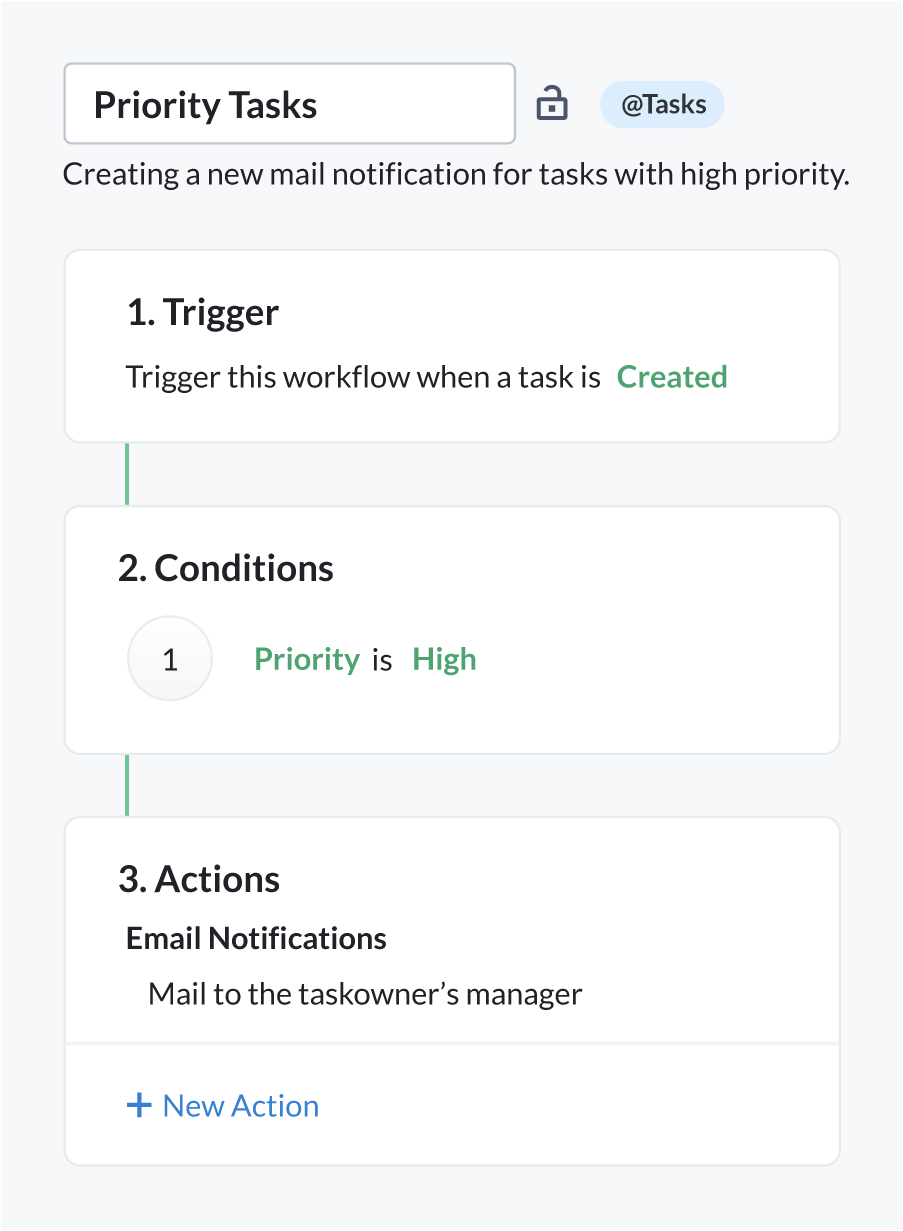
How Bigin Workflows Work
Bigin's workflow automation runs on a simple structure with three parts:
- The trigger is what starts the automation. A new contact is created, a field is updated or a deal moves to a different stage in the pipeline.
- The condition is the filter. It decides when the automation should run. Maybe you want it to run only for leads that come through your website or for deals worth more than $5,000.
- The action is what happens. A new record gets assigned to someone, or an email gets sent to a prospect or a follow-up task gets created.
Key insight: The true value of automation isn't to replace your thinking but making sure decisions you have already made, happen when you want them to. They don't require judgment. They just need to occur consistently to deliver value.
Let's take you through three workflow automations you can set up today.
Workflow 1: Automatic Lead Assignment
Without automation, the process looks like this. Somebody signs up on your website and a new contact comes through. You check where it is from and decide who should handle it based on territory or product interest. Then you manually assign it to that team member.
Then you do this all over again for the next one. And the one after that.
Here's how to set it up on Bigin:
- Go to Settings → Automation → Workflows
- Click Create Workflow and choose Contacts as the module
- Set the trigger to Record Created
- Add a condition: Lead source = Website Form and Region = Mumbai
- Set the action: Assign Record to your team member
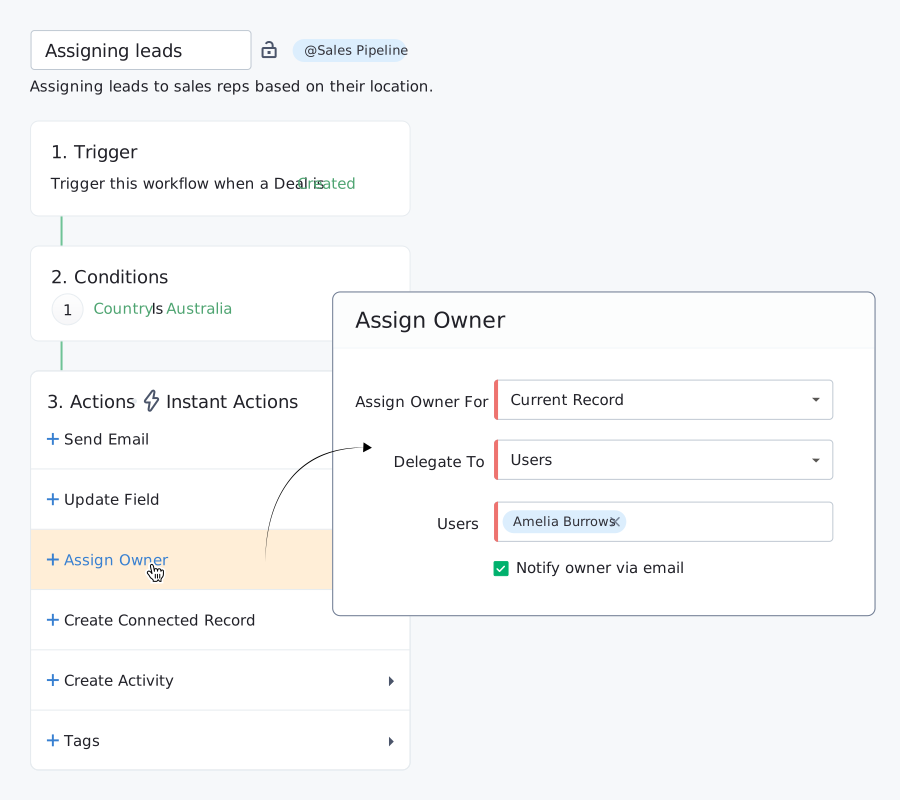
Pro tip: Test the automation with a sample contact that matches your conditions before going live. With this automation, there is no need for manual sorting and assigning. Your leads get handled faster and your team knows exactly what they need to do.
Workflow 2: Instant Acknowledgement Email
Someone fills out your contact form at 8 PM. You see it the next morning and by the time you reply, they have already reached out to your competitor.
Here's how to set up an automated response to keep your leads warm:
- Go to Settings → Automation → Workflows
- Click Create Workflow and choose Contacts
- Set your trigger to Record Created
- Add a condition: Lead Source = Website Form
- Set the action to Send Email
- Choose an email template or create one. It can be as simple as "Thank you for reaching out, we will get back to you within 24 hours"
Save and activate it. Now everybody who reaches out through your website gets an email within 60 seconds. It sets expectations and shows that you are responsive while you prepare for a proper follow-up.
Workflow 3: Stage-Based Follow-Up Tasks
You move a deal to "Proposal Sent" and promise to follow up in 3 days. Then you get busy and remember a week later. Now the deal's gone cold.
Here's how to change that:
- Go to Settings → Automation → Workflows
- Click Create Workflow and choose Deals
- Set your trigger to Stage Changed
- Add a condition: Deal Stage = Proposal Sent
- Set the Action as Create Task
- Task name: "Follow up on proposal"
- Set due date to 3 days from now
- Assign to Deal Owner
Use this on your next deal and ensure that nothing slips through the cracks. Keep the momentum going.
Getting Started with Automation
Start with one workflow and don't try to automate everything at once.
Lead routing is a good one to test. It's straightforward and you'll see the results immediately.
Pro tip: Build slowly. That makes it easier for your team to adapt, manage troubleshooting and understand all the changes. Automations that work best fade into the background and give you time back to do work that matters.
Ready to get started? or if you have any questions.
Need help setting up Bigin workflows?
Our certified Zoho experts can configure automations tailored to your business.